
You must sign in to the RL Authenticator in order to use its features. This can be done after your account has been created and you have selected a password.
-
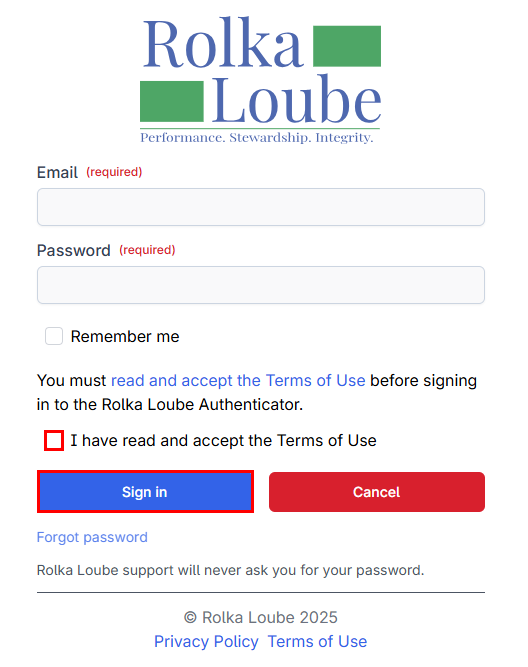
Open your web browser and navigate to https://auth.rolkaloube.com. The RL Authenticator Sign In screen appears.
-
Enter your username in the Username field.
-
Enter your password in the Password field.
Note: Passwords are case-sensitive. Ensure thatCaps Lockis off.
You can check the Remember me box to keep you signed in after you close your browser. You should not use this checkbox if you are at a shared computer for security reasons.
-
Select the checkbox affirming that you have read and accept the terms of use.
-
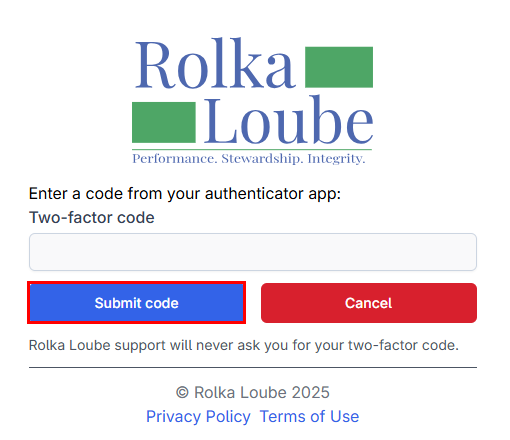
Select Sign in. The two-factor authentication pop-up window appears.
-
Choose a two-factor authentication option.
Note: If you only have one type of two-factor authentication enabled on your account, you may not have to choose.
-
Access the two-factor authentication code, either in your email or authenticator app depending on your previous choice.
-
Enter the two-factor code in the Two-factor code field.
-
Select Submit code.