
Use the following steps to submit a Semi-Annual Report if you are not an Authorized Signer.
-
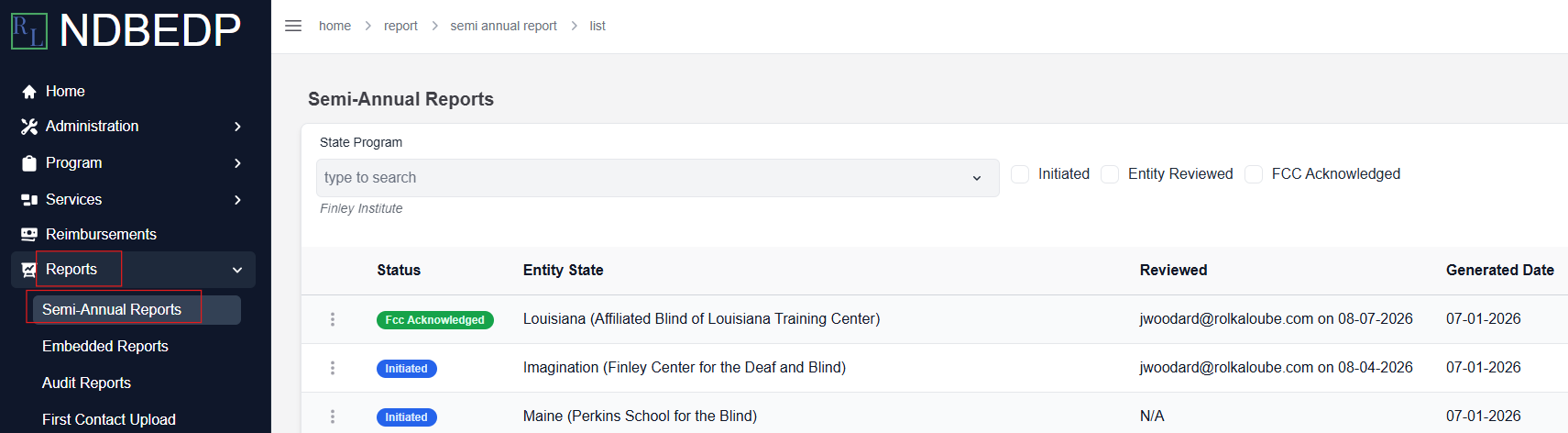
Log in to the NDBEDP Centralized Database. The NDBEDP Centralized Database Home page appears.
-
Select Reports from the navigation panel.
-
Select Semi - Annual Reports from the drop-down menu.
-
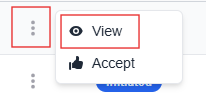
Select the three dots next to the Semi-Annual Report you want to submit.
-
Select View from the drop-down menu. The Semi-Annual Report Detail page appears.
-
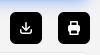
Select the download or printer icon at the top of the page.
-
Download or print the Semi- Annual Report.
-
Sign the Semi-Annual Report at the bottom to complete the attestation.
-
Scan the Semi-Annual Report into your computer.

-
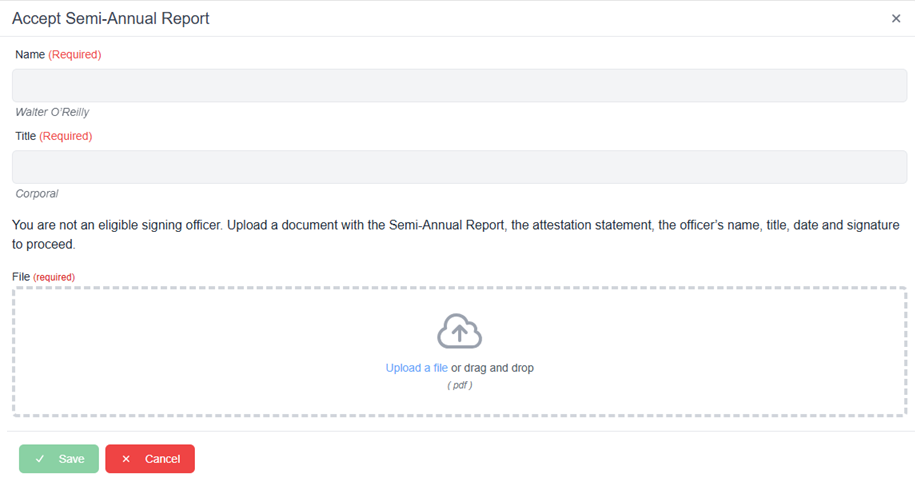
Select Accept. The Accept Semi-Annual Report pop-up window appears.
-
Enter the full name of the person who signed the Semi-Annual Report in the Name field.
-
Enter the title of the person who signed the Semi-Annual Report in the Title field.
-
Select Upload a file or drag and drop a supported file into the upload area.
Note: The only supported file type is PDF. -
Select Save. The message Successfully Accepted Semi-Annual Report! appears in green.