
Use the following steps to create and submit an Audit Report.
-
Log in to the NDBEDP Centralized Database. The NDBEDP Centralized Database Home page appears.
-
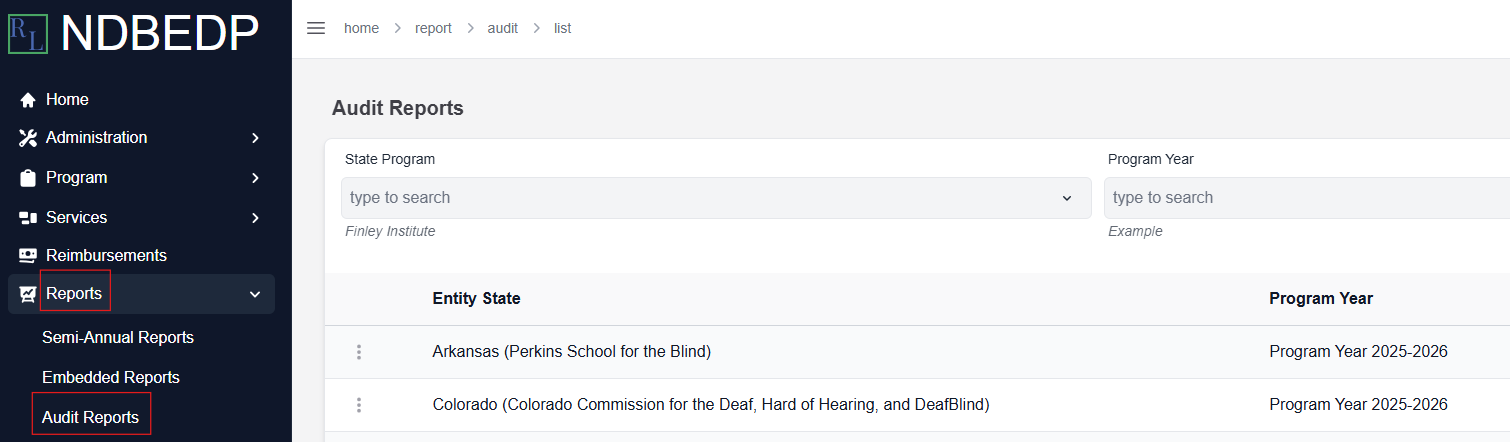
Select Reports from the navigation panel.
-
Select Audit Reports from the drop-down menu.
-
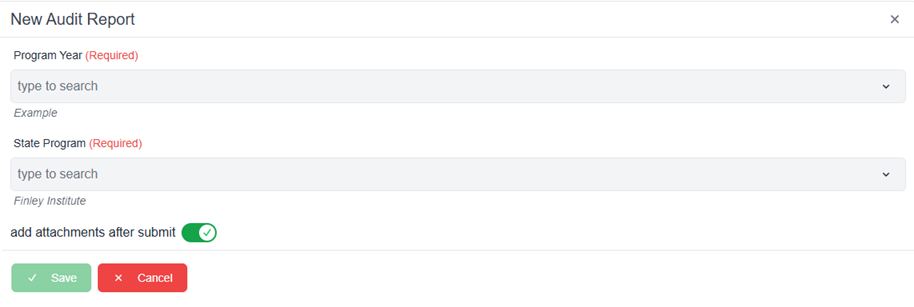
Select + New. The New Audit Report pop-up window appears.
-
Complete the required fields:
-
-
Program Year
-
State Program
-
-
Deselect the add attachments after submit toggle if you do not want the ability to add attachments after your audit report has been submitted.
-
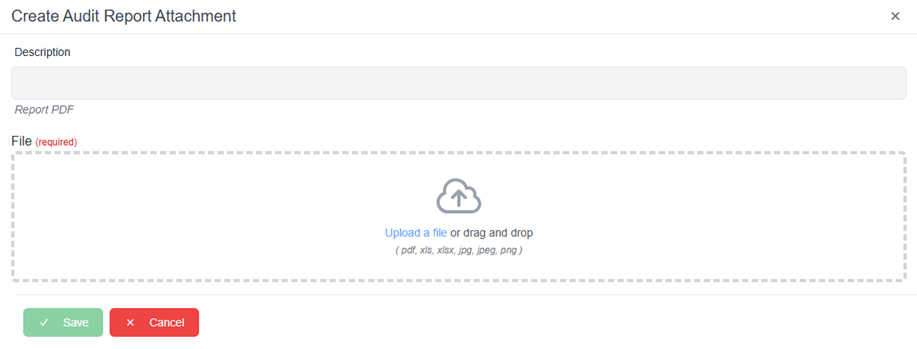
Select Save. The message Successfully created Audit Report! appears in green. The Create Audit Report Attachment pop-up window appears.
-
Enter a description for the attachment in the Description field.
-
Select Upload a file or drag and drop the attachment file into the upload area.
Note: Supported file types include PDF, XLS, XLSX, JPG, JPEG, and PNG. -
Select Save. The message Successfully uploaded Attachment! appears in green.