
Use the following steps to clear your cache using Microsoft Edge.
-
Open Microsoft Edge on your computer.

-
Select the three dots in the upper right-hand corner of the page.
-
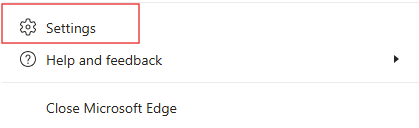
Select Settings from the drop-down menu. The Settings page appears.
-
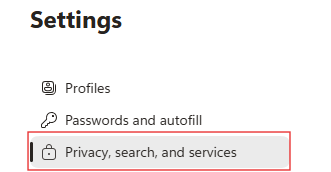
Select Privacy, search, and services from the navigation panel.
-
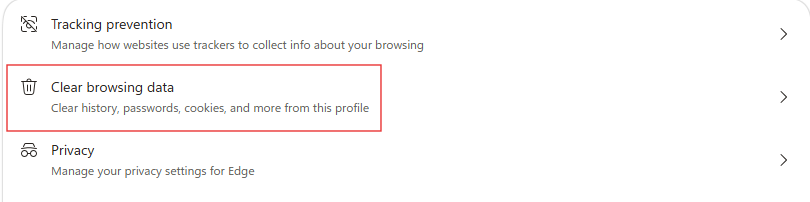
Select Clear browsing data.

-
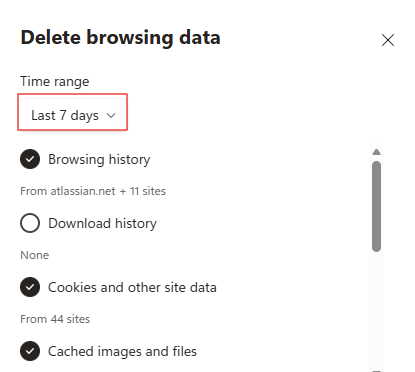
Select Choose what to clear. The Delete Browsing Data pop-up window appears.
-
Select Last 7 days from the Time range drop-down menu.
Note: Make sure that Browsing History, Cookies and other site data, and Cached images and files are selected.

-
Select Clear now.