
Use the following steps to add a Note.
-
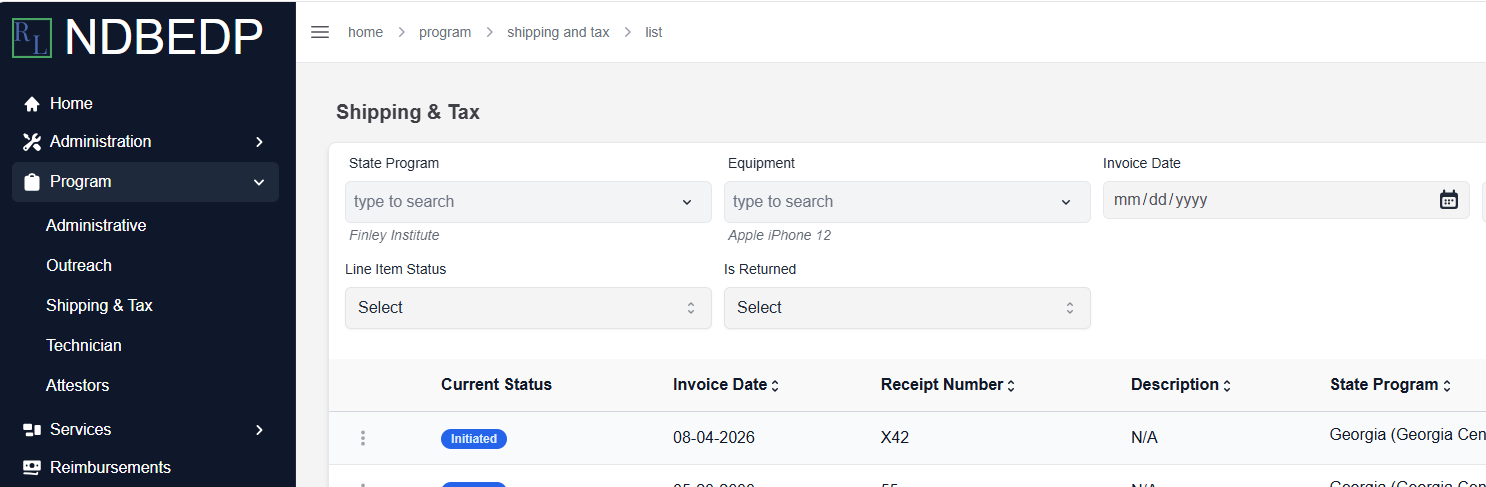
Log in to the NDBEDP Centralized Database. The NDBEDP Centralized Database Home page appears.
-
Select the cost category to which you want to add a new Note from the navigation panel.
-
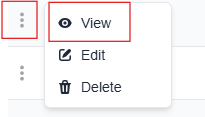
Select the three dots next to the line item to which you want to add a Note.
-
Select View from the drop-down menu. The [Category] Details page appears.
-
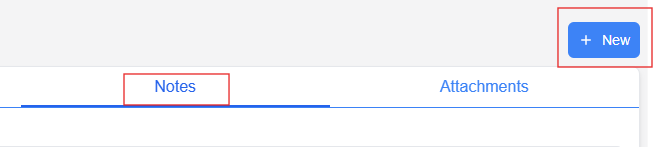
Select the Notes tab.
-
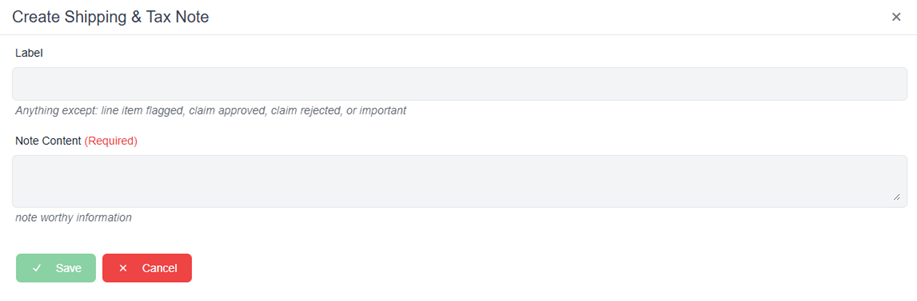
Select + New. The Create [Category] Note pop-up window appears.
-
Enter a label for the Note in the Label field.
Note: The label can be anything except line item flagged, claim approved, claim rejected, or important. -
Enter the content of the Note in the Note Content field.
-
Select Save. The message Successfully created Note! appears in green.