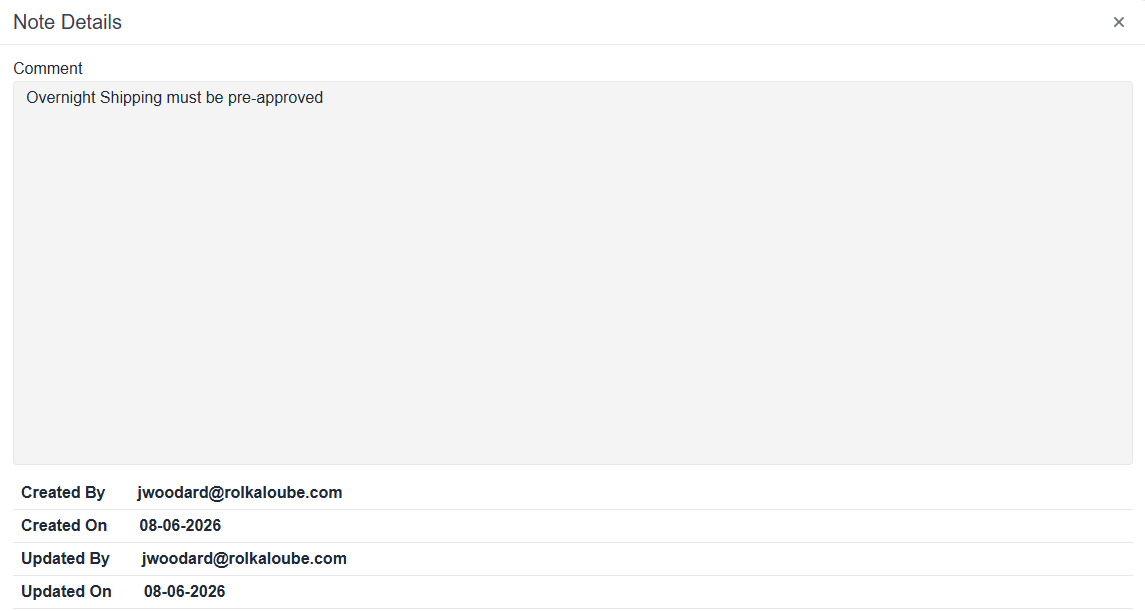
Use the following steps to view a Note.
-
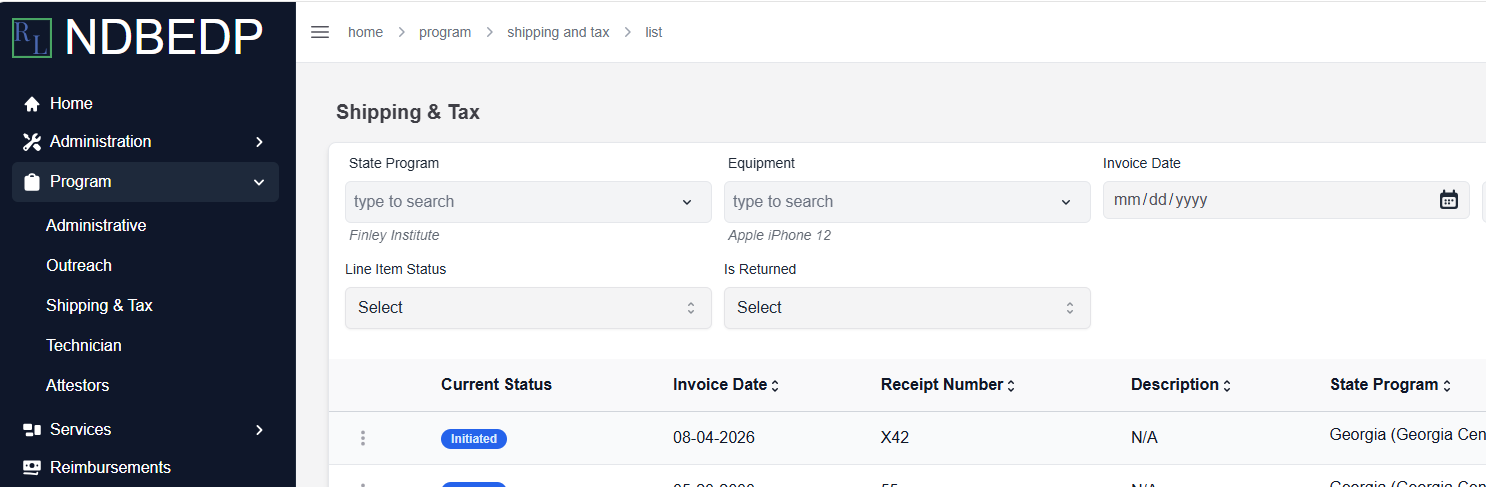
Log in to the NDBEDP Centralized Database. The NDBEDP Centralized Database Home page appears.
-
Select the cost category for which you want to view a Note from the navigation panel.
-
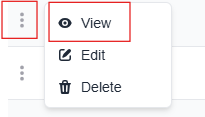
Select the three dots next to the line item for which you want to view a Note.
-
Select View from the drop-down menu. The [Category] Details page appears.
-
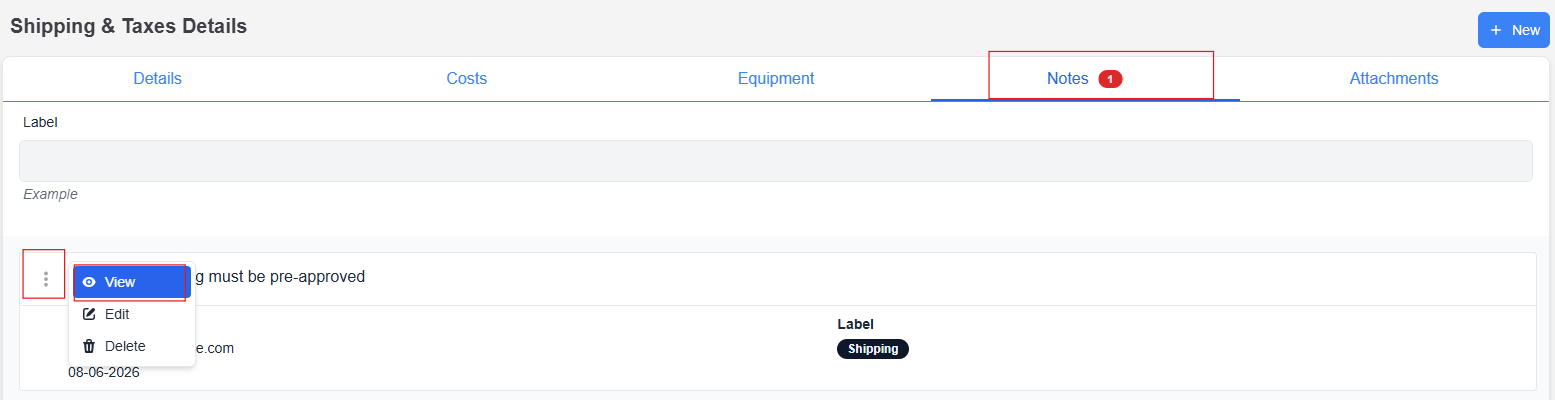
Select the Notes tab.
Note: A red badge on the Notes tab displays the number of Notes associated with the record. -
Select the three dots next to the Note you want to view.
-
Select View from the drop-down menu. The Note Details pop-up window appears.