
Use the following steps to add an Attachment for an individual cost.
-
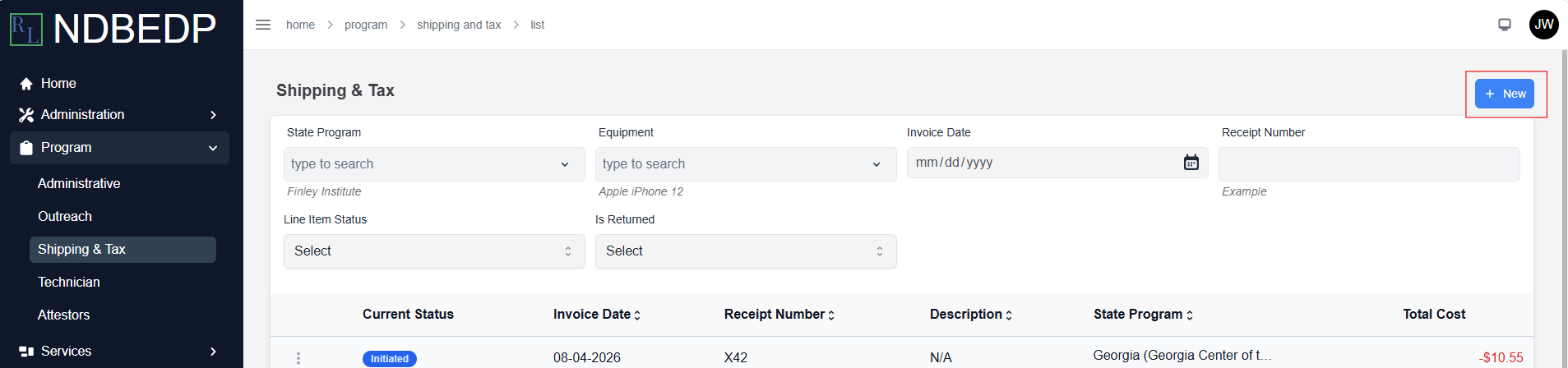
Log in to the NDBEDP Centralized Database. The NDBEDP Centralized Database Home page appears.
-
Select the cost category to which you want to add the Attachment from the navigation panel.
-
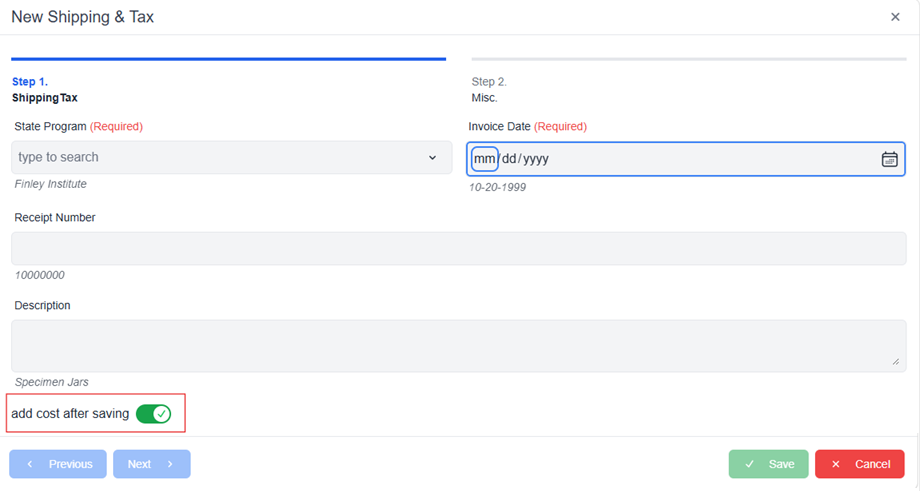
Select + New. The New [Category] pop-up window appears.
-
Complete the required fields.
Note: Ensure the add cost after saving toggle is selected. -
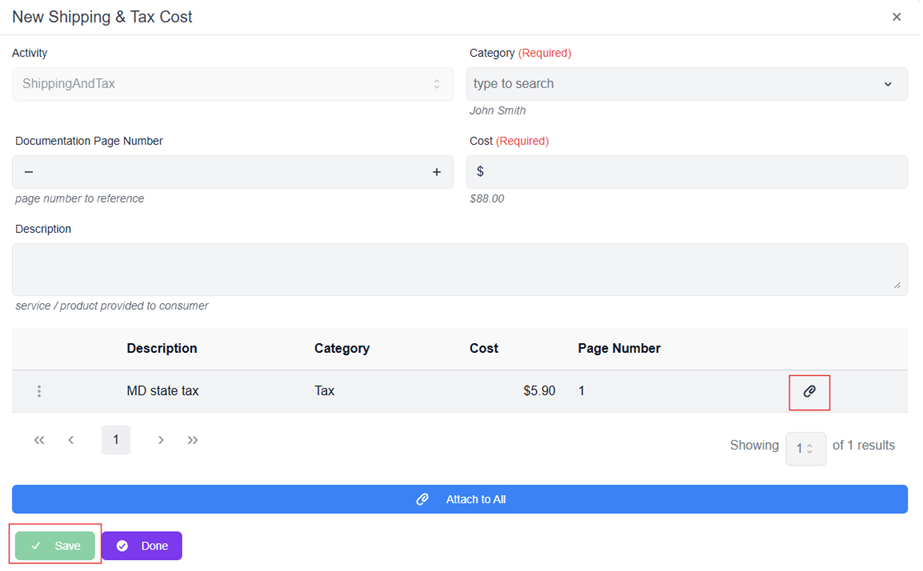
Select Save. The New [Category] Cost pop-up window appears.
-
Enter the time spent (in hours) if applicable.
-
Select the category for the Cost from the Category drop-down menu.
Note: See Eligible Expenses for the Centralized Databasefor a listing of categories based on activity type. -
In the Documentation Page Number field, enter or select the page number corresponding to the Attachment you will upload for the Cost.
Note: See Attachments. -
Enter the cost of the line item in the Cost field.
-
Enter a description of the Cost in the Description field.
-
Select Save. The message Successfully created Sub Item appears.
-
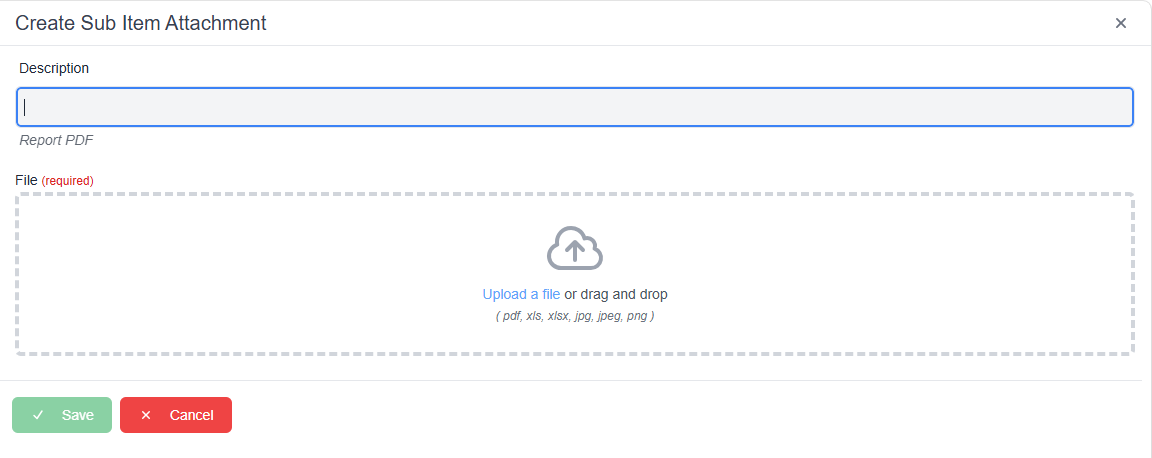
Select the paperclip icon. The Create Sub Item Attachment pop-up window appears.
-
Enter a description for the Attachment in the Description field.
-
Select Upload a file or drag and drop the attachment file into the upload area.
Note: Supported file types include PDF, XLS, XLSX, JPG, JPEG, and PNG. -
Select Save. The message Successfully Uploaded Attachment! appears in green.
-
Select Done in the New [Category] Cost pop-up window.