
Use the following steps to edit a Shipping and Tax.
-
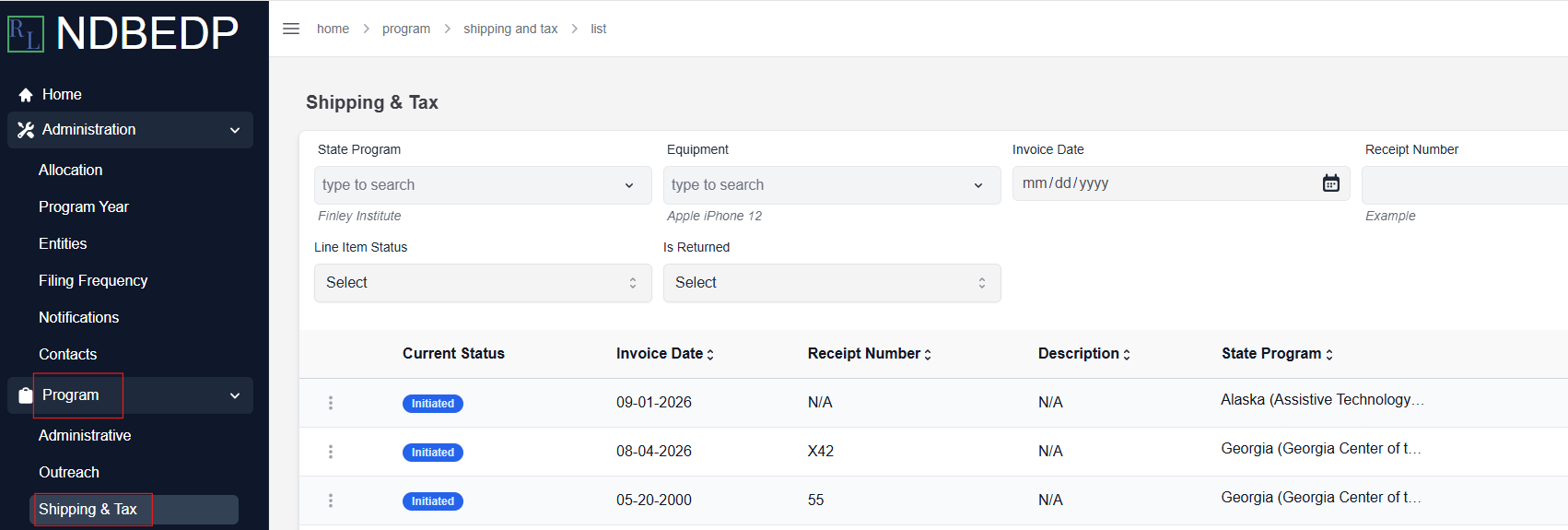
Log in to the NDBEDP Centralized Database. The NDBEDP Centralized Database Home page appears.
-
Select Program from the navigation panel.
-
Select Shipping and Tax from the drop-down menu.
-
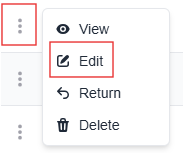
Select the three dots next to the Shipping and Tax you want to edit.
-
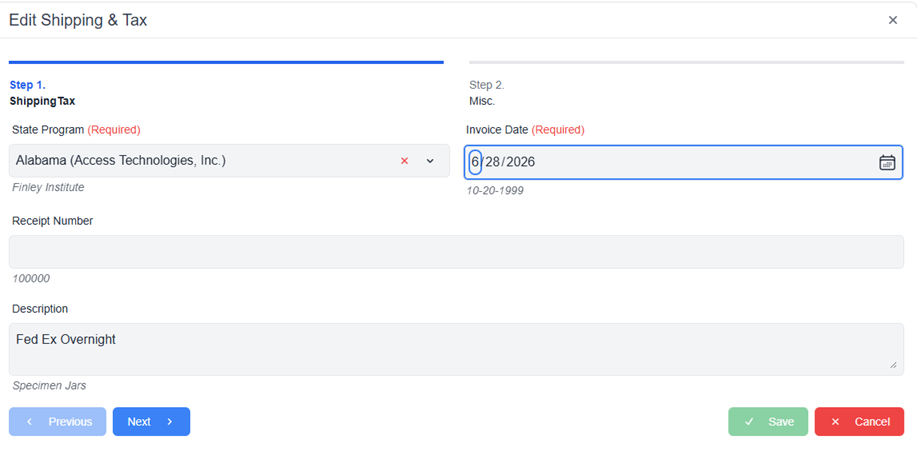
Select Edit from the drop-down menu. The Edit Shipping and Tax pop-up window appears.
-
Modify the data as necessary.
-
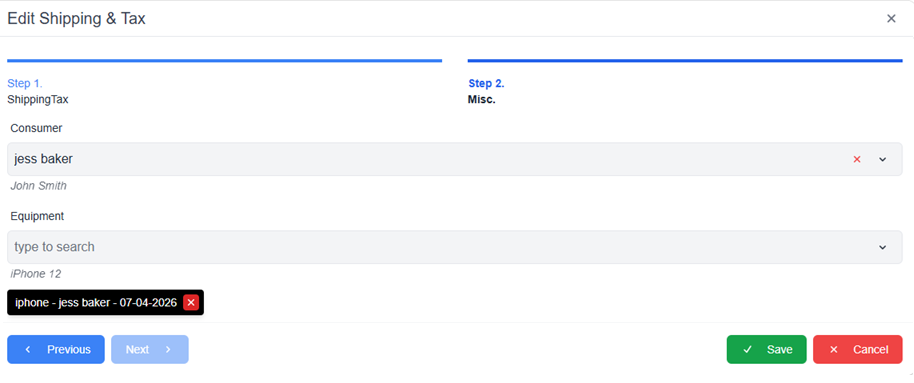
Select Next to move on to Step 2.
-
Modify the data as necessary.
-
Select Save. The message Successfully updated Shipping and Tax! appears in green.
OR
Use the following steps to edit a Shipping and Tax.
-
Log in to the NDBEDP Centralized Database. The NDBEDP Centralized Database Home page appears.
-
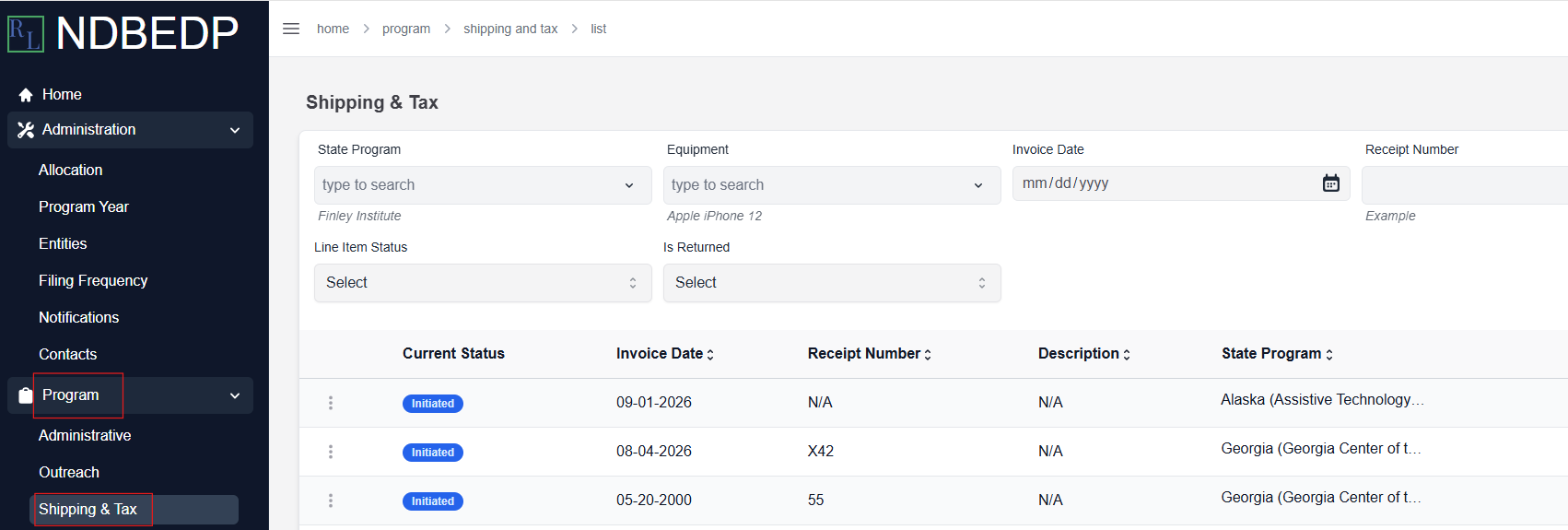
Select Program from the navigation panel.
-
Select Shipping and Tax from the drop-down menu.
-
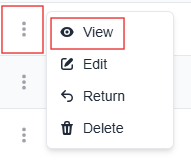
Select the three dots next to the Shipping and Tax you want to edit.
-
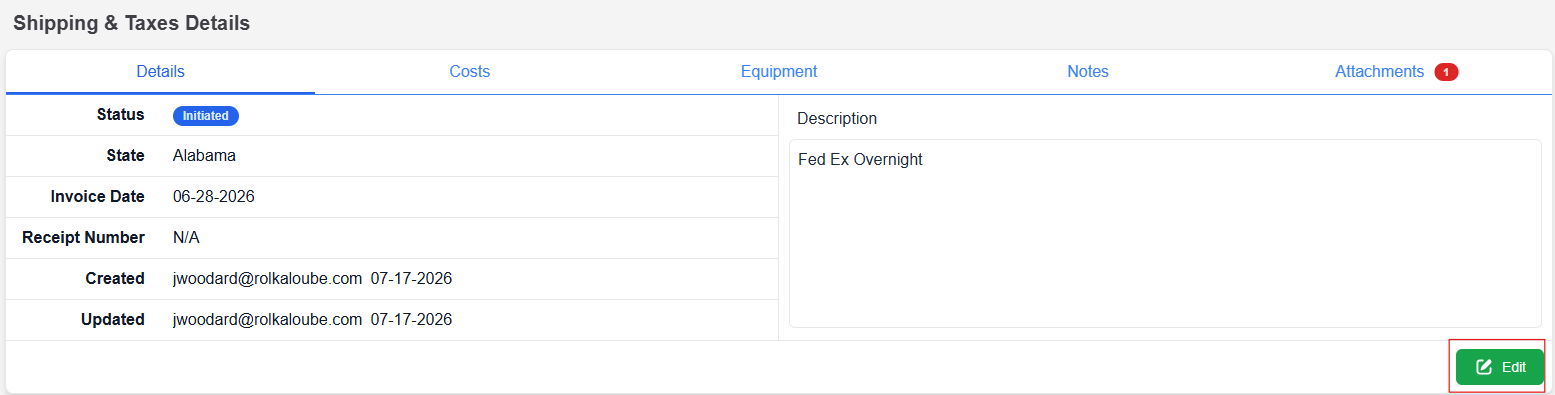
Select View from the drop-down menu. The Shipping and Taxes Details page appears.
-
Select Edit. The Edit Shipping and Tax pop-up window appears.
-
Modify the data as necessary.
-
Select Next to move on to Step 2.
-
Modify the data as necessary.
-
Select Save. The message Successfully updated Shipping and Tax! appears in green.