
Use the following steps to add a Contact.
-
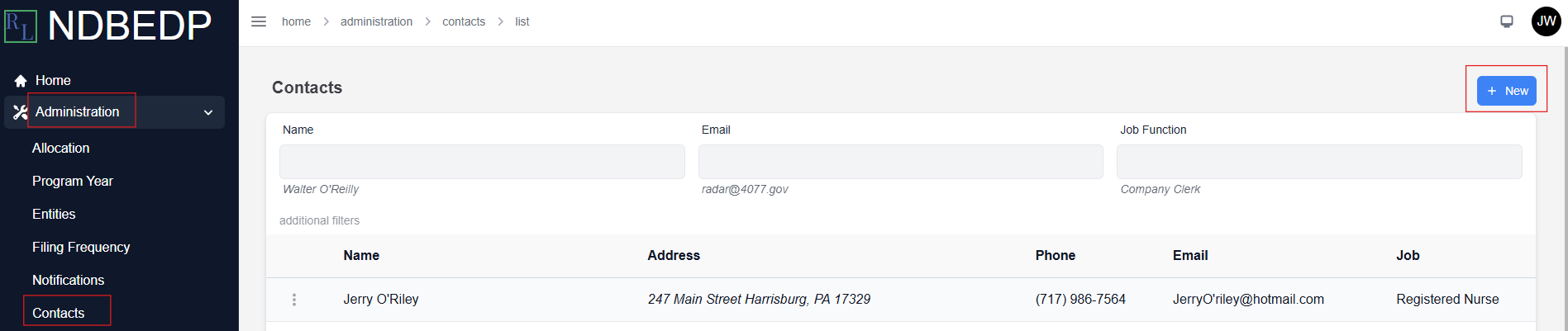
Log in to the NDBEDP Centralized Database. The NDBEDP Centralized Database Home page appears.
-
Select Administration from the navigation panel.
-
Select Contacts from the drop-down menu.
-
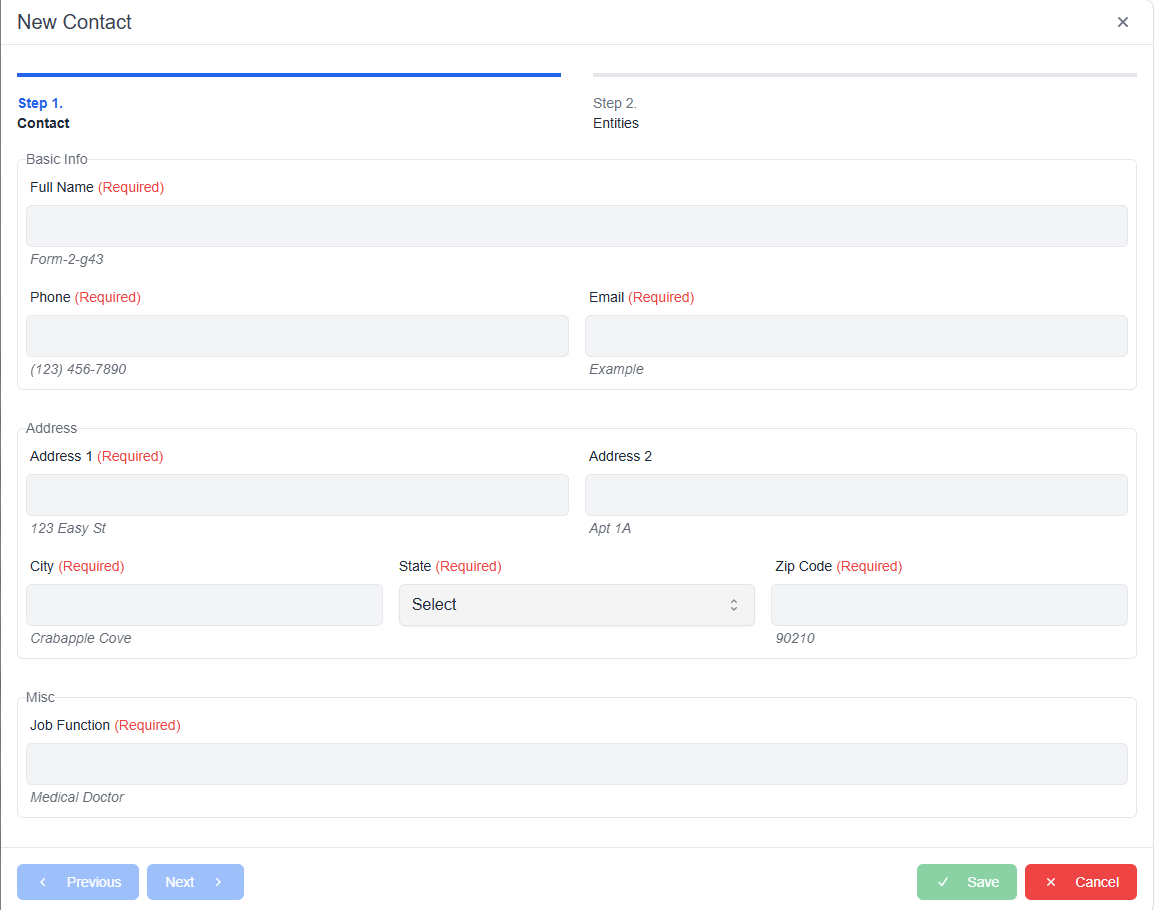
Select + New. The New Contact pop-up window appears.
-
Complete the required fields:
-
Full Name
-
Phone
-
Email
-
Address
-
City
-
State
-
Zip Code
-
Job Function
-
-
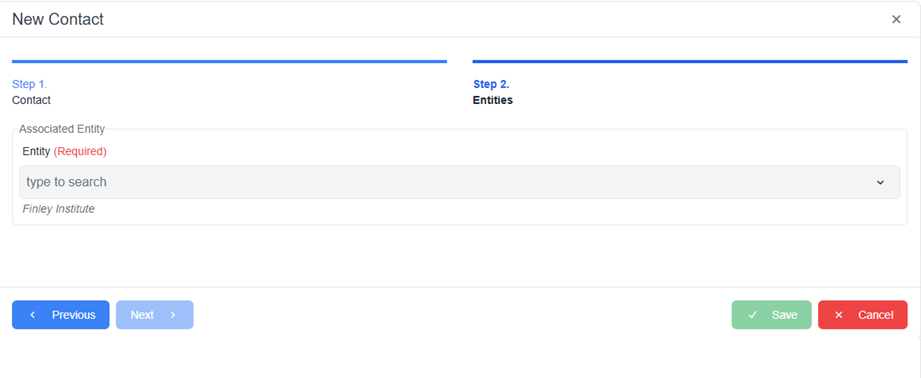
Select Next to continue to Step 2.
-
Select the entity the Contact is associated with from the drop-down menu.
-
Select Save. The message Contact created successfully appears in green.