
Add cost to all is the simplest Mass Costs option in the NDBEDP Centralized Database. It assigns the same dollar amount to every selected line item, regardless of the number of hours recorded or any other information. Use the following steps to add cost to all items.
-
Log in to the NDBEDP Centralized Database. The NDBEDP Centralized Database Home page appears.
-
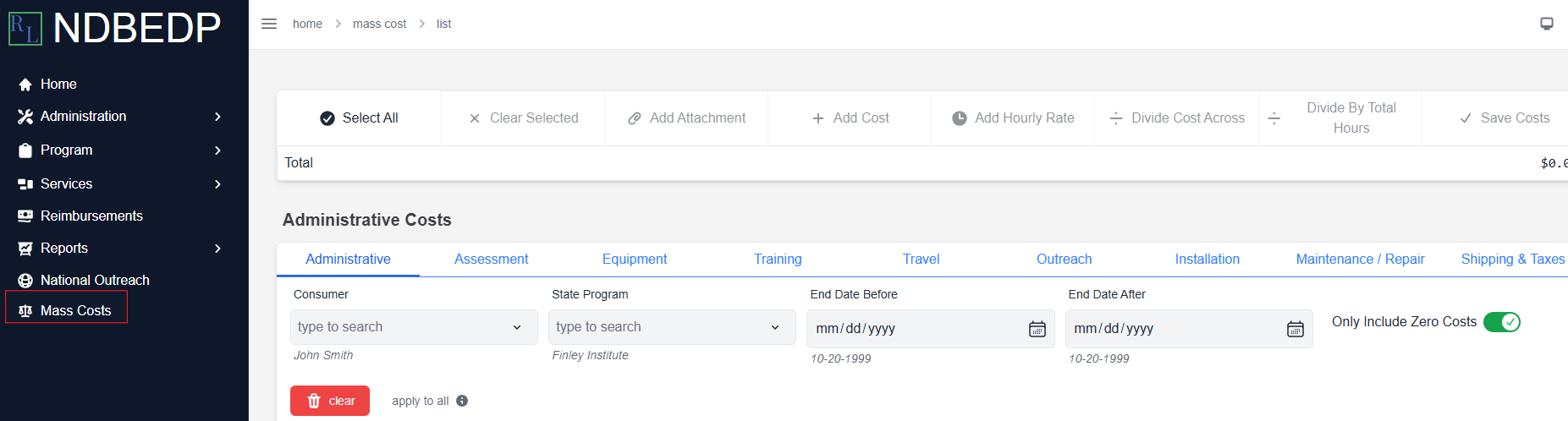
Select Mass Costs from the navigation panel.
-
Select the line items to which you want to add a cost by using the search option.
-
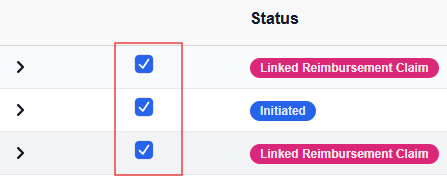
Select the checkbox to the left of each line item to which you want to add a cost.
Note: Select the carrot to view the details of each line item.

-
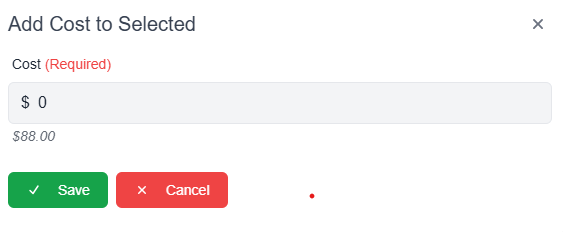
Select + Add Cost. The Add Cost to Selected pop-up window appears.
-
Enter the cost you want to add to each selected line item into the Cost field in dollars and cents.
-
Select Save.
Note: The total cost of the selected line items appears on the green Total line at the top of the page.
-
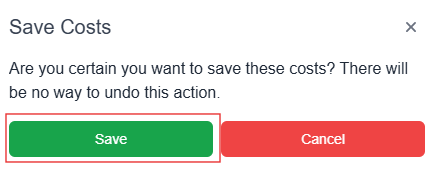
Select Save Costs. The Save Costs pop-up window appears.
-
Select Save. The message Successfully Saved! appears in green.
Note: You cannot undo saved costs.