
Editing a line item changes only that specific cost. It does not recalculate the costs assigned to the other selected line items.
Use the following steps to edit a cost for Mass Costs.
-
Log in to the NDBEDP Centralized Database. The NDBEDP Centralized Database Home page appears.
-
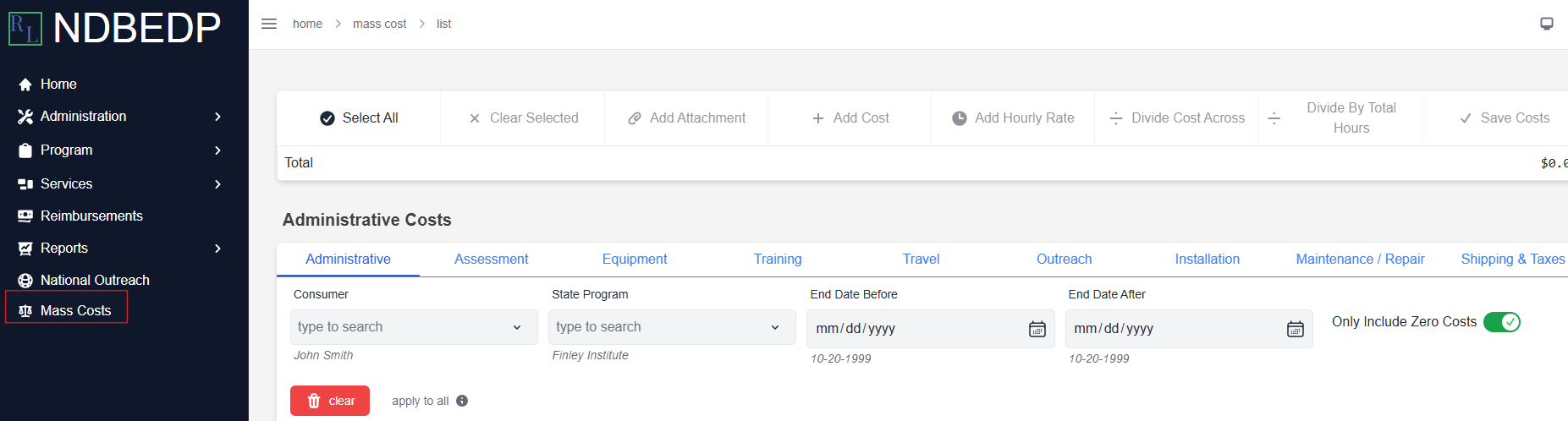
Select Mass Costs from the navigation panel.
-
Select the line items for which you want to change a cost by using the search option.
-
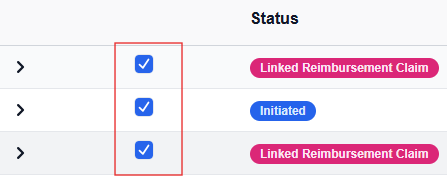
Select the checkbox to the left of each line item for which you want to add or divide costs.
Note: Select the carrot to view the details of each line item. -
Select Add Costs, Add Hourly Rate, Divide Costs Across or Divide by Total Hours. A pop-up window appears.
-
Enter the cost you want to add or divide each selected line item by into the Cost field in dollars and cents.
-
Select Save.

-
Select the carrot next to the line item you want to edit. The line item details appear.
-
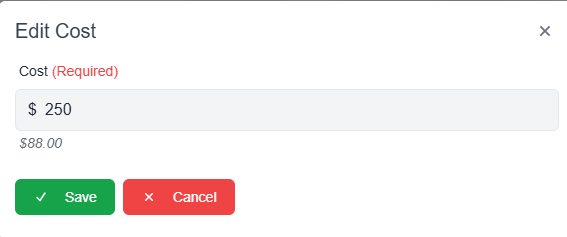
Select the green pencil and paper icon. The Edit Cost pop-up window appears.
-
Adjust the cost of the line item as necessary.
-
Select Save.
Note: The total cost of the selected line items appears on the green Total line at the top of the page.

-
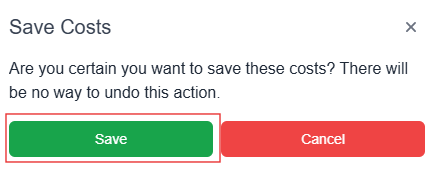
Select Save Costs. The Save Costs pop-up window appears.
-
Select Save. The message Successfully Saved! appears in green.
Note: You cannot undo saved costs.