
Use the following steps to change your password whether it be over security concerns, regular maintenance, or a personal preference. These instructions will help you change your password if you already know your current password and can log into the system. Otherwise, please use the Reset Password instructions.
-
Sign in to the RL Authenticator.
-
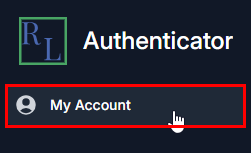
Select My Account from the navigation panel on the left. The Profile page appears.
Note: You can also select the blue button with your name in the top right corner. Then, select My Profile from the drop-down menu.
-
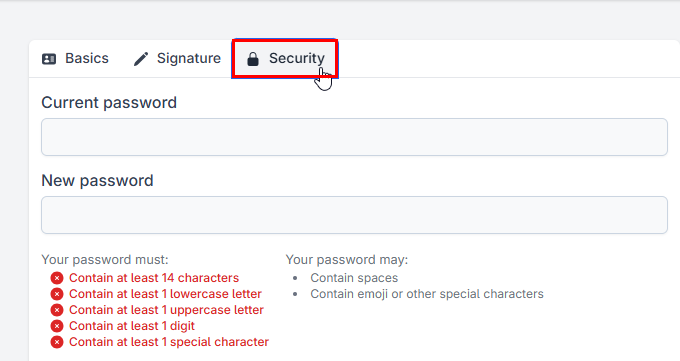
Select the Security tab.
-
Enter your current password in the Current password field.
-
Enter a new password that meets the password requirements in the New password field.
-
The password must meet the following requirements:
-
Be at least 14 characters
-
Contain at least 1 lowercase letter
-
Contain at least 1 uppercase letter
-
Contain at least 1 digit
-
Contain at least 1 special character
Note: Your password may contain spaces, emoji, or other special characters.
-
-
-
Re-enter your password in the Repeat password field exactly as it was entered above. The password must match that in the New Password field.
-
Select Change password.