Update Display Name
You can use this option to update your name in the RL Authenticator. This name will be used in all the Rolka Loube applications to which you have access.
-
Sign in to the RL Authenticator.
-
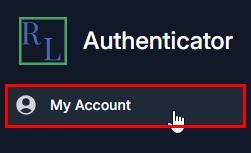
Select My Account from the navigation panel on the left. The Profile page appears.
Note: You can also select the blue button with your name in the top right corner. Then, select My Profile from the drop-down menu.
-
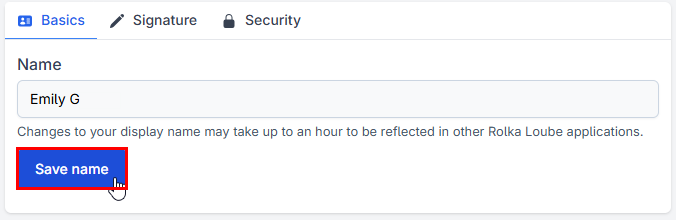
Update your name in the Name field.
Note: The Name field cannot be empty and should be your real name. -
Select Save name.
Update Signature
-
Sign in to the RL Authenticator.
-
Select My Account from the navigation panel on the left. The Profile page appears.
Note: You can also select the blue button with your name in the top right corner. Then, select My Profile from the drop-down menu.
-
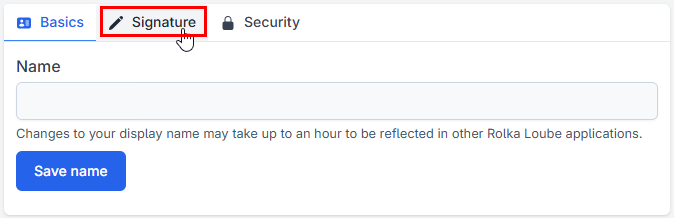
Select the Signature tab.
-
Do one of the following:
-
Draw your signature by clicking and dragging with the mouse on the provided canvas.
Note: You can undo the previous draw stroke by selecting Undo or start over by selecting Clear.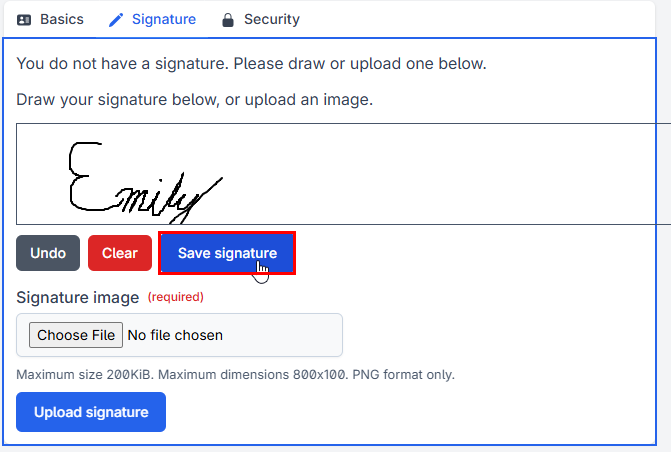
Signature Tab -
Select Save signature when you are done.
-
-
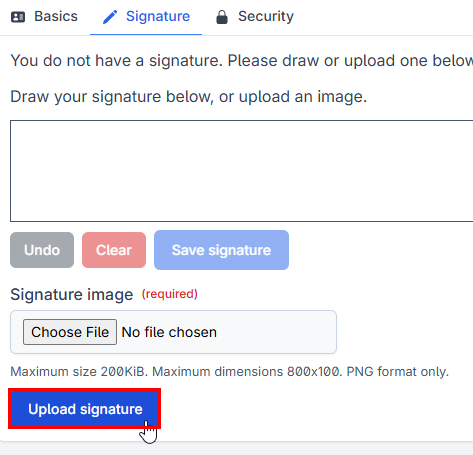
Upload an image of your signature.
-
Select Choose File.
-
Choose a file that satisfies the requirements.
-
The signature image must be:
-
No larger than size 200KiB
-
No larger than 800x100 dimensions
-
In PNG format only
Upload Signature
-
-
-
Select Upload Signature.
-
-