
Use email two-factor authentication to enhance your account security. This method will require you to verify your identity by entering a code sent to your registered email address before accessing the Authenticator.
Activate Email Two-Factor
If your email two-factor authentication is not yet enabled and you want to activate it, use the following steps.
-
Sign in to the Rolka Loube Authenticator.
-
Select My Account from the navigation panel on the left. The Profile page appears.
Note: You can also select the blue button with your name in the top right corner. Then, select My Profile from the drop-down menu. -
Select the Security tab.
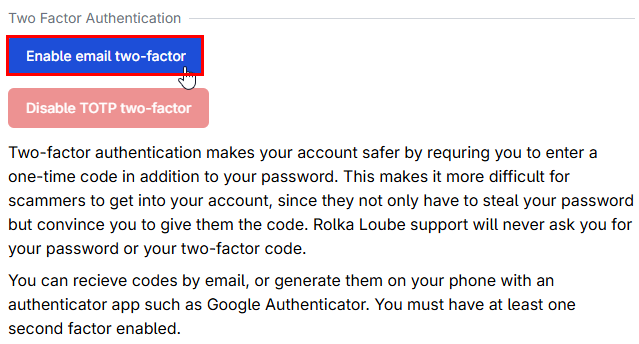
-
Select Enable email two-factor.
Disable Email Two-Factor
If your email two-factor authentication is already enabled but you want to disable it, use the following steps.
-
Sign in to the Rolka Loube Authenticator.
-
Select My Account from the navigation panel on the left. The Profile page appears.
Note: You can also select the blue button with your name in the top right corner. Then, select My Profile from the drop-down menu. -
Select the Security tab.
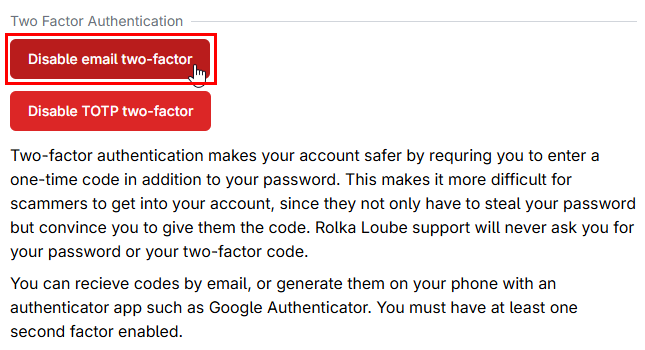
-
Select Disable email two-factor.
You must have at least one form of two-factor authentication enabled. If you enable TOTP two-factor authentication, then disable email two-factor, and lose your TOTP secret (such as by losing your phone or failing to transfer the application to a new phone), then you will lose access to your account.