The title of your reimbursement claim will be auto generated.
Use the following steps to add a Reimbursement Claim with line items.
-
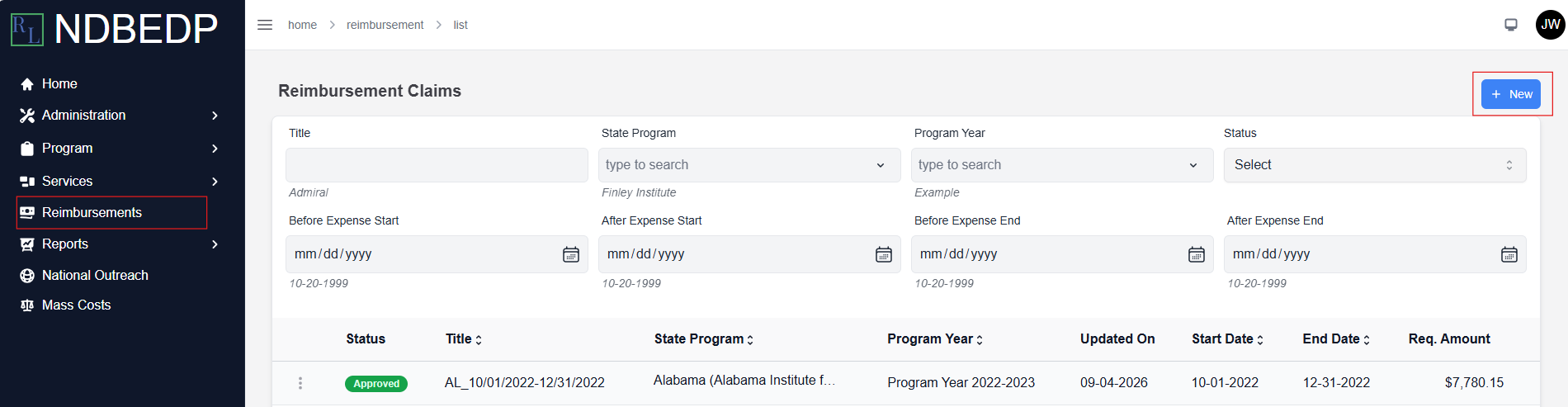
Log in to the NDBEDP Centralized Database. The NDBEDP Centralized Database Home page appears.
-
Select Reimbursements from the navigation panel.
-
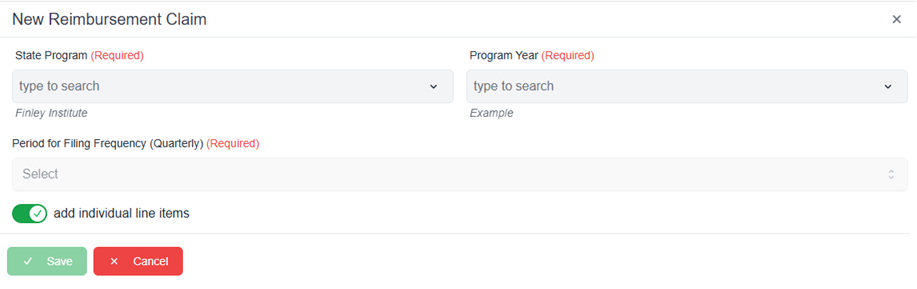
Select + New. The New Reimbursement Claim pop-up window appears.
-
Complete the required fields:
-
-
State Program
-
Program Year
-
Period for Filing Frequency
-
-
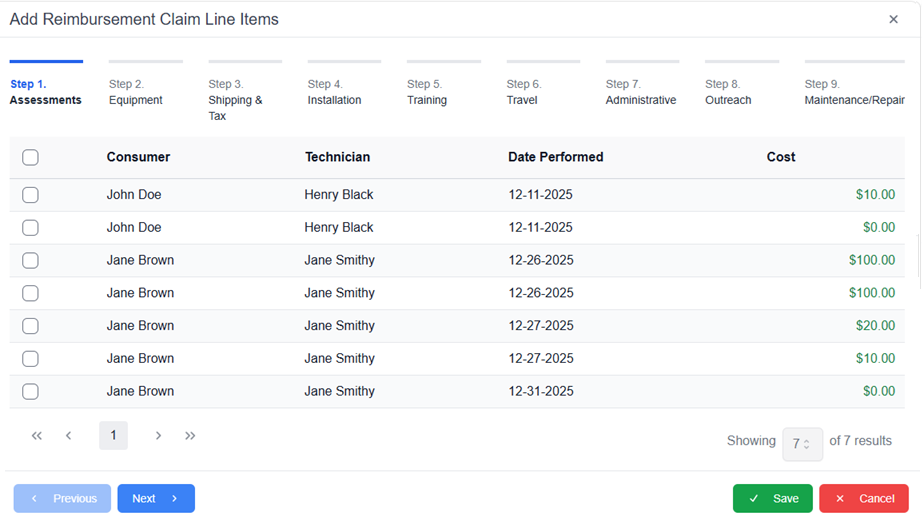
Select Save. The message Successfully Created Reimbursement appears in green. The Add Reimbursement Claim Line Items pop-up window appears.
-
Select the checkboxes for the line items you want to include on your Reimbursement Claim.
-
Select Next to move on to the next cost category.
-
Continue to select Next until you have viewed and selected all line items for your Reimbursement Claim.
-
Select Save. The message Successfully added Line Items to Reimbursement Claim! appears in green.
Line item status may be: Initiated, Submitted, Flagged, Returned to Entity, Linked Reimbursement Claim, or Removed Reimbursement Claim.