
Use the following steps to submit a Reimbursement Claim if you are not an authorized signer.
-
Log in to the NDBEDP Centralized Database. The NDBEDP Centralized Database Home page appears.
-
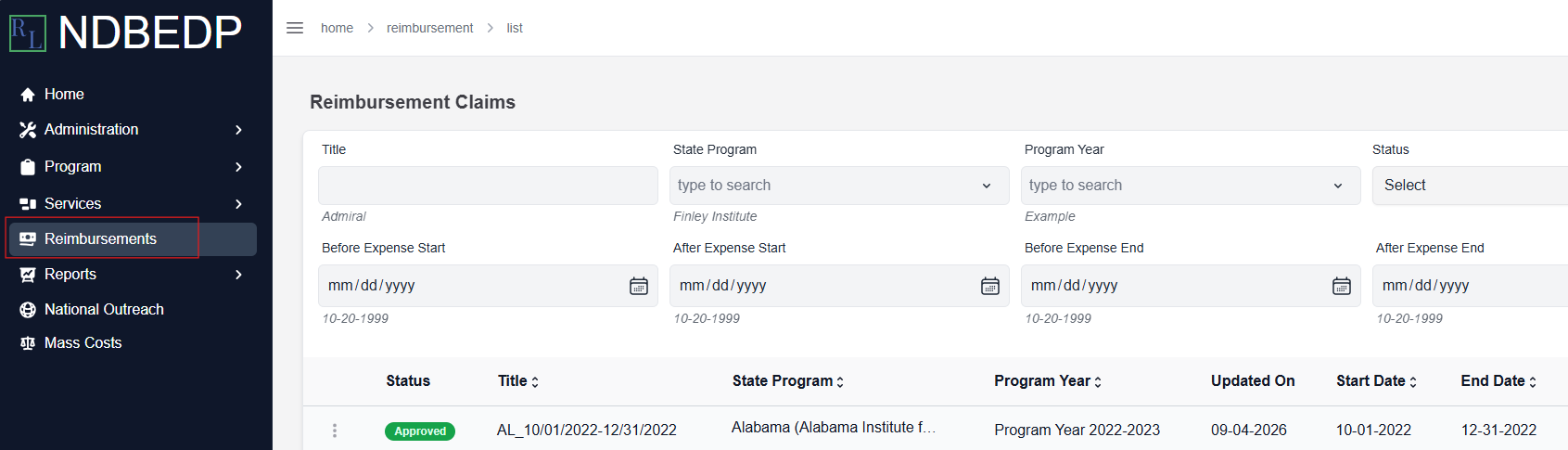
Select Reimbursements from the navigation panel.
-
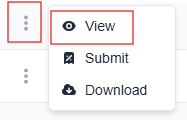
Select the three dots next to the Reimbursement Claim you want to submit.
-
Select View from the drop-down menu. The Reimbursement Claim Details page appears.

-
Select the Costs tab.
-
Scroll down to the bottom of the page.

-
Select Download Documentation. The printable Reimbursement Claim is downloaded to your computer and the message Success! File downloaded successfully appears in green.
-
Print the Printable Reimbursement Claim and complete all fields.
-
Scan the Printable Reimbursement Claim into your computer.

-
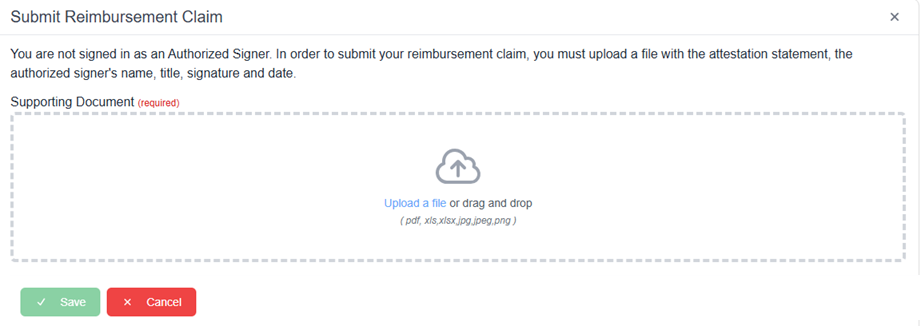
Select Submit. The Submit Reimbursement Claim pop-up window appears.
-
Select Upload a file or drag and drop the file into the upload area.
Note: Supported file types include PDF, XLS, XLSX, JPG, JPEG, and PNG. -
Select Save.
Once you submit your Reimbursement Claim, you will receive an email regarding its status. Reimbursement Claim statuses are: Initiated, Submitted, Revision, Rejected, Reviewed, Approved, Payment Requested, or Payment Completed.
If you receive an email notification that your Reimbursement Claim was rejected, make the modifications to your Reimbursement Claim as specified in the email and follow the steps above to re-submit your claim.