
When an item has been submitted as part of a Reimbursement Claim, the attachments for costs are no longer visible but still may be downloaded from the submitted items for the Reimbursement Claim.
Use the following steps to add an attachment to a Reimbursement Claim.
-
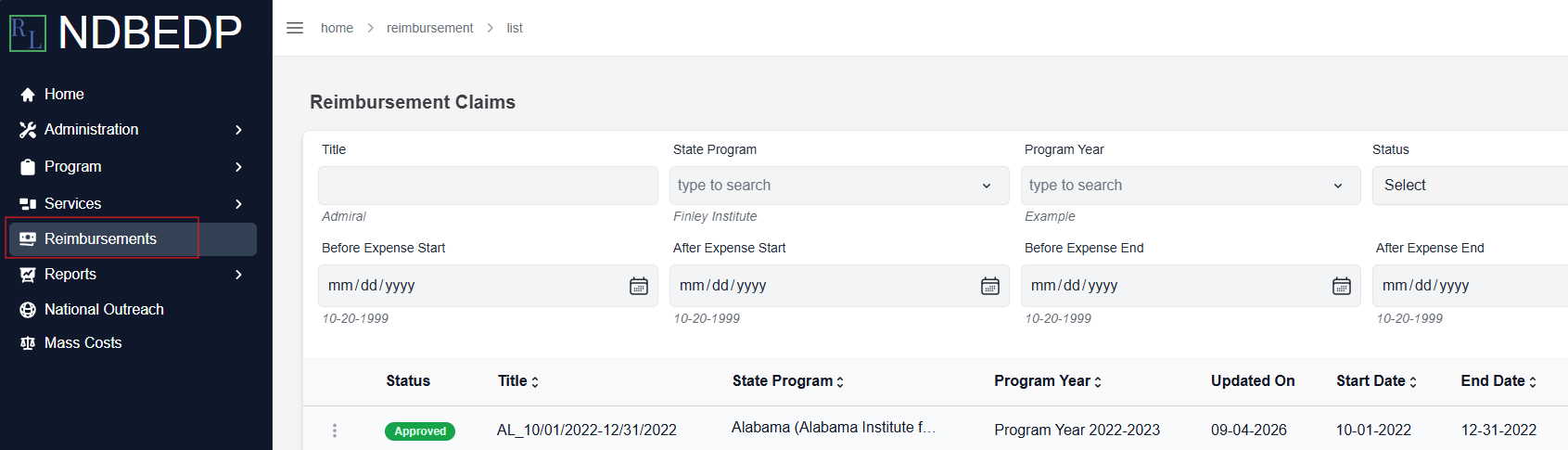
Log in to the NDBEDP Centralized Database. The NDBEDP Centralized Database Home page appears.
-
Select Reimbursements from the navigation panel.
-
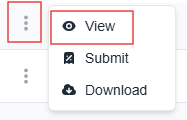
Select the three dots next to the Reimbursement Claim to which you want to add an attachment.
-
Select View from the drop-down menu. The Reimbursement Claim Details page appears.
-
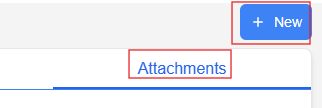
Select the Attachments tab.
-
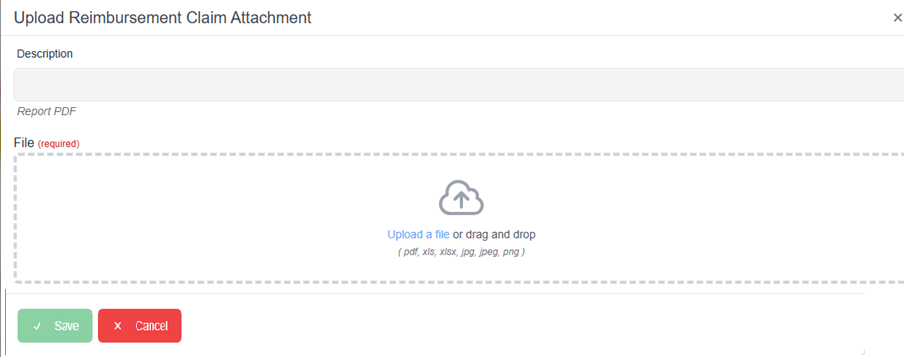
Select + New. The Upload Reimbursement Claim Attachment pop-up window appears.
-
Enter a description for the attachment in the Description field.
-
Select Upload a file or drag and drop the attachment file into the upload area.
Note: Supported file types include PDF, XLS, XLSX, JPG, JPEG, and PNG. -
Select Save.