
Use the following steps to add a Consumer.
-
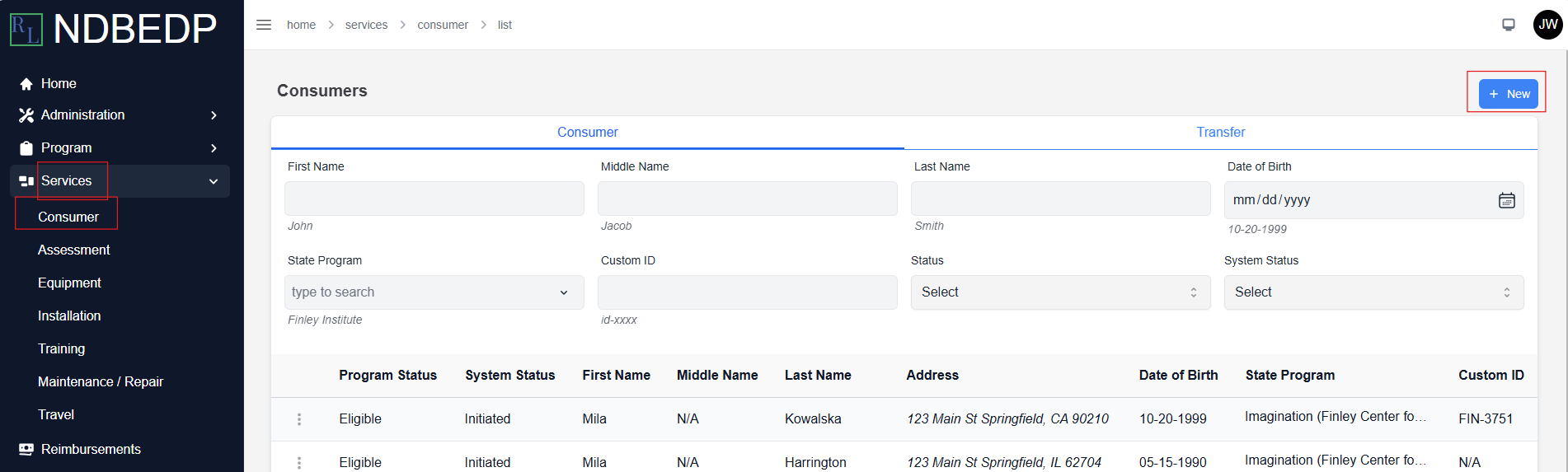
Log in to the NDBEDP Centralized Database. The NDBEDP Centralized Database Home page appears.
-
Select Services from the navigation panel.
-
Select Consumer from the drop-down menu.
-
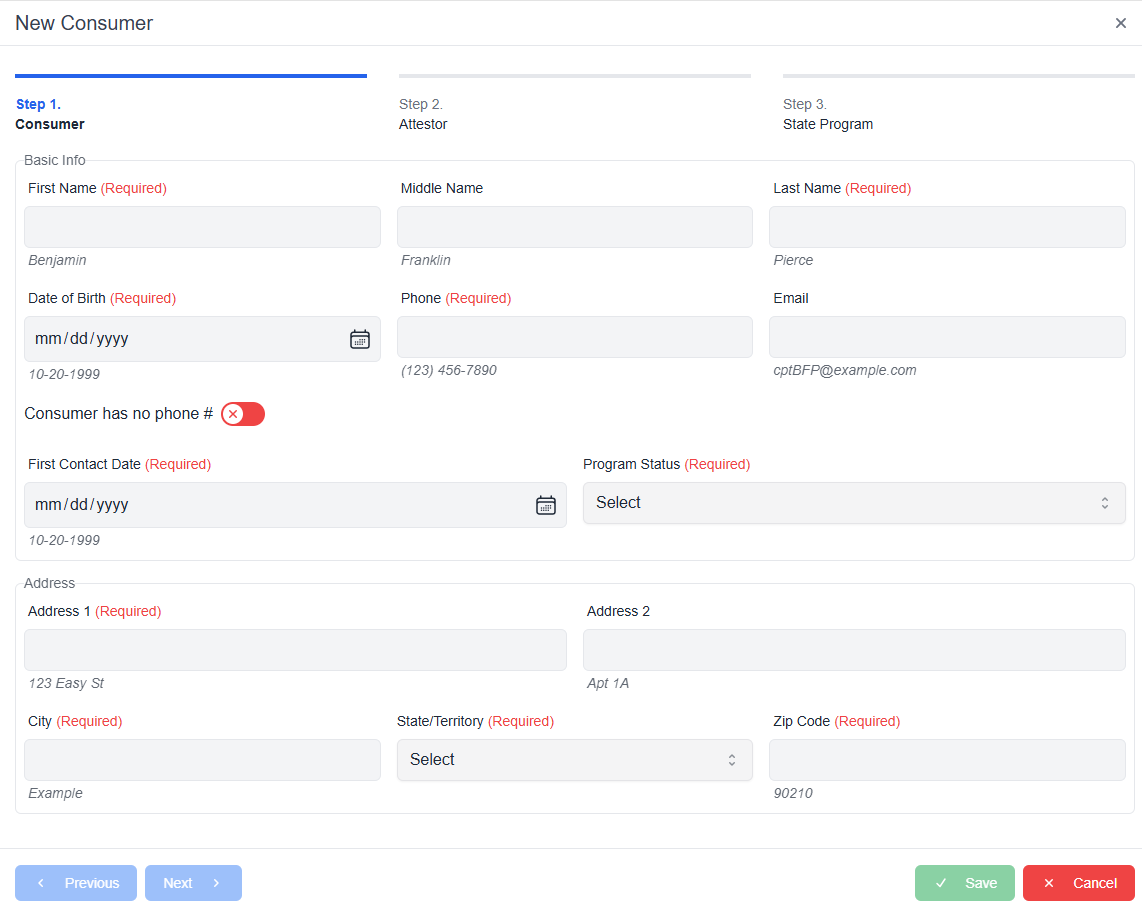
Select + New. The New Consumer pop-up window appears.
-
Complete the required fields:
Note: Select the Consumer has no phone # toggle if the consumer has no phone number.
-
-
First Name
-
Last Name
-
Date of Birth
-
Phone
-
First Contact Date
-
Program Status
-
Address
-
City
-
State/Territory
-
Zip Code
-
A consumer may be listed in the system as:
-
Eligible (eligible for the program)
-
Deceased
-
Ineligible (not eligible for the program)
-
Pending (eligibility indeterminate due to extenuating circumstances-see notes for details)
An individual who was added as a consumer but was determined ineligible will have their Personally Identifiable Information (PII) removed from the system because they are not eligible and have never been eligible. If they were eligible in the past and received services, their record will remain in the system for reporting purposes.
-
Select Next to move on to Step 2.
-
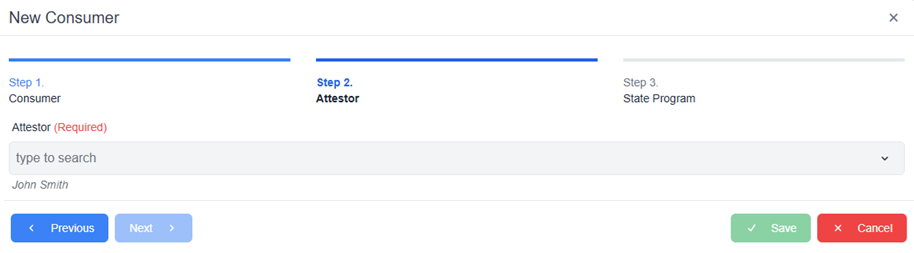
Select an attestor from the drop-down menu or select + add attestor to create a new Attestor.
Note: See Add an Attestor for more instructions on how to add an Attestor. -
Select Next to move on to Step 3.
-
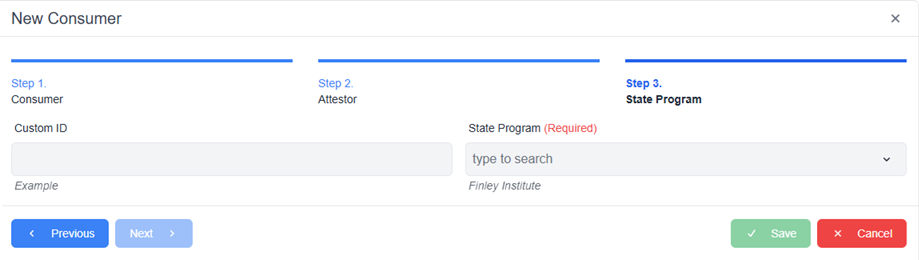
Select a state program from the drop-down menu.
Note: The Custom ID field is optional. -
Select Save. The message Successfully created Consumer! appears in green.
The Centralized Database will assign a status to a consumer. These statuses can be found on the Consumers main page and may be:
-
Initiated (a newly created consumer record)
-
Edited (an edited consumer record)
-
Conflict (an active status type that was flagged for potential conflict across states)
-
Transferring (a new inactive record that was transferred to the new entity upon approval)
-
Transfer Return (a now active record that was returned to the original entity state after being rejected)
-
Merged (an inactive record due to being a duplicate and being merged)
-
Sanitized (an inactive record that had its details sanitized)
-
Inactive (a record that is no longer active)
-
Active (a record that is currently active in the system)