
Use the following steps to create a new client for a custom application.
This function requires the manage_apps role.
-
Sign in to the Rolka Loube Authenticator.
-
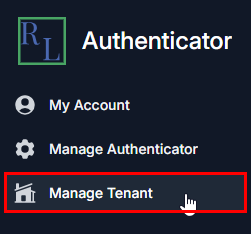
Select Manage Tenant from the navigation panel on the left. The Select Tenant page appears.
-
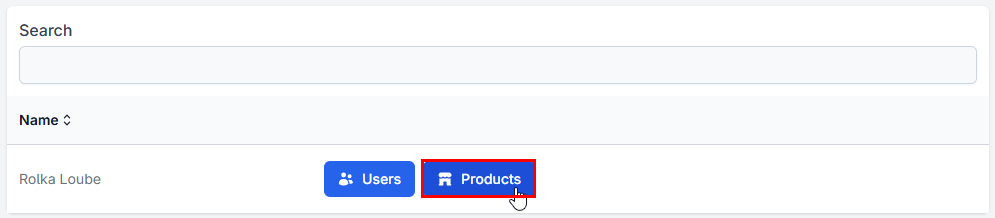
Select Products next to your assigned tenant. The Products page appears.
-
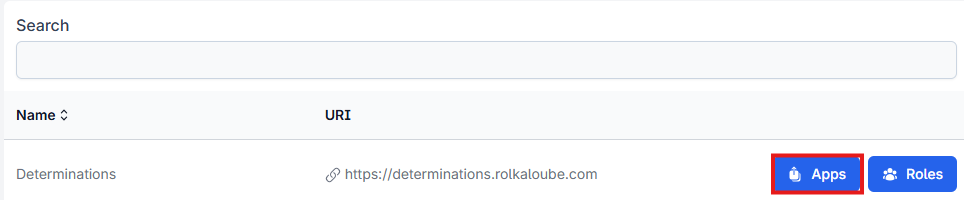
Select Apps next to the product for which you want to create the new client. The Applications page appears.
-
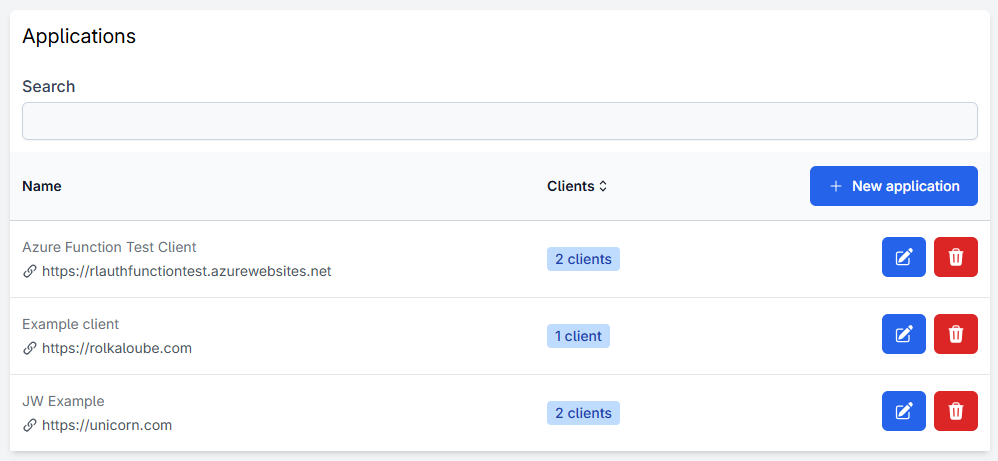
Select the pencil icon next to the application you want to view. The Details page appears.
-
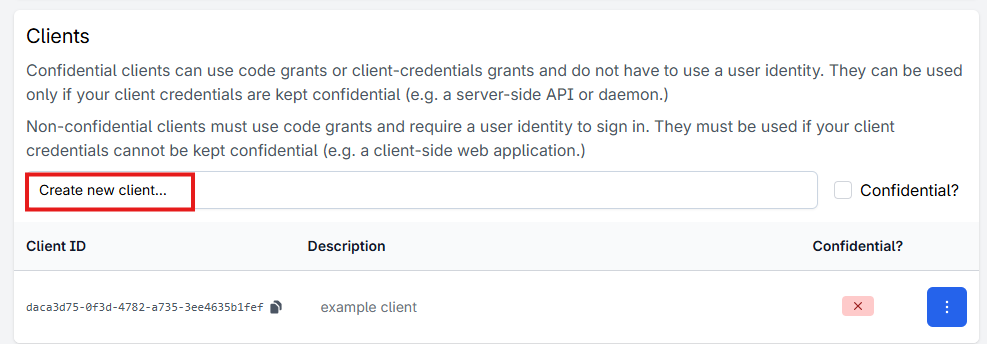
Scroll to the bottom and select Create a new client.

-
Enter a human-readable description for the client.
-
Select or deselect the Confidential checkbox as appropriate (see in-app explanation).
-
Select Create.
-
Copy the client secret and store it in a secure location.