
Use the following steps to add Training to Equipment.
-
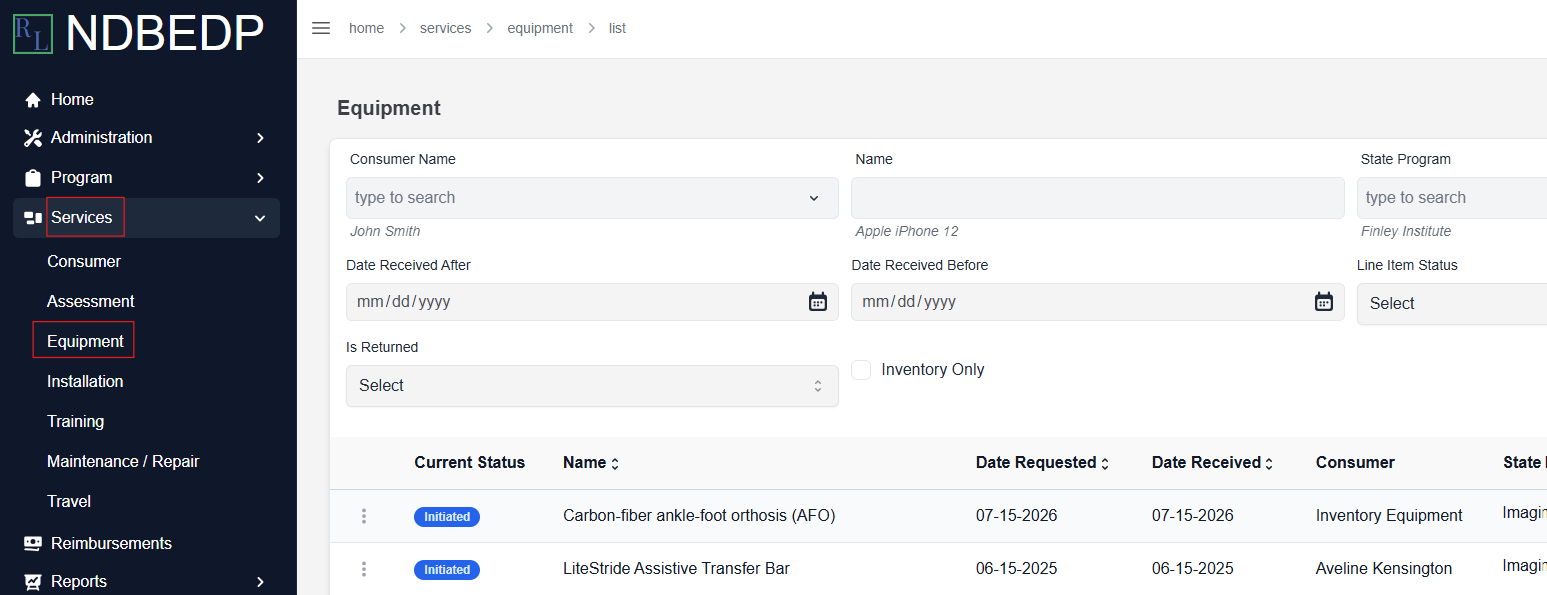
Log in to the NDBEDP Centralized Database. The NDBEDP Centralized Database Home page appears.
-
Select Services from the navigation panel.
-
Select Equipment from the drop-down menu.
-
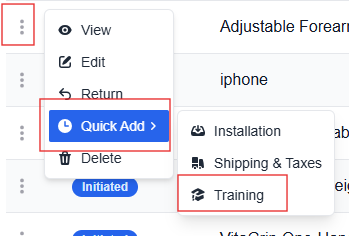
Select the three dots next to the Equipment to which you want to add Training.
-
Select Quick Add from the drop-down menu.
-
Select Training from the drop-down menu. The New Training pop-up window appears.
-
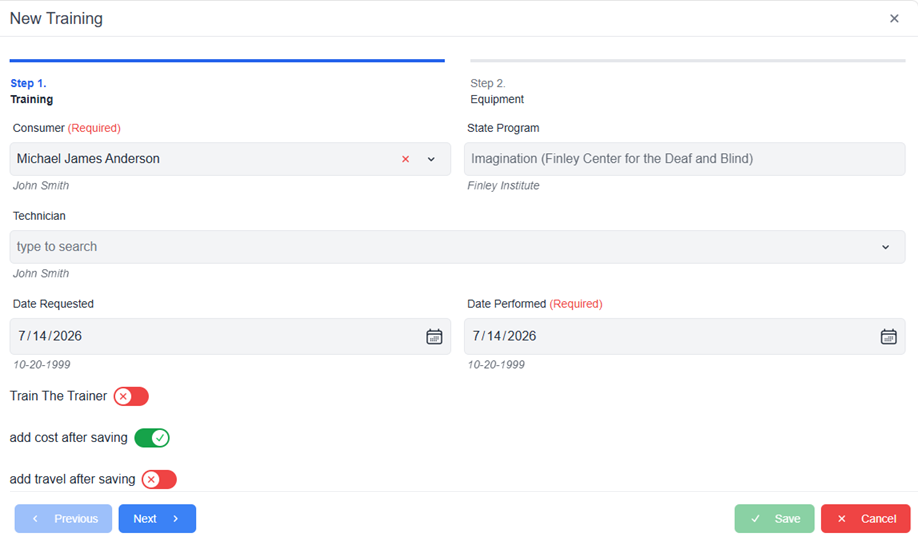
Verify that the information in the required fields is correct.
Note: The Consumer, State Program, Date Requested and Date Performed fields will automatically populate. -
Select the Train the Trainer toggle to add train the trainer.
Note: See Trainingfor more information on how to add train the trainer. -
Deselect the add cost after saving toggle if you do not want to add costs.
Note: See Costs for more information on how to add costs. -
Select the add travel after saving toggle if you want to add travel.
Note: See Travelfor more information on how to add travel. -
Select Next to move on to Step 2.
-
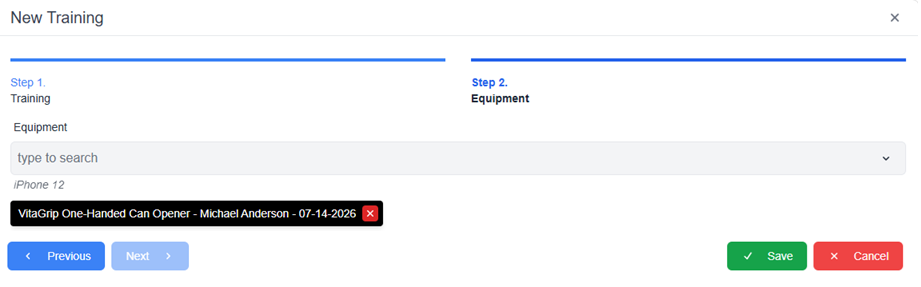
Select Save. The message Successfully created Training! appears in green.
Note: The Equipment field will automatically populate.
OR
Use the following steps to add Training to Equipment.
-
Log in to the NDBEDP Centralized Database. The NDBEDP Centralized Database Home page appears.
-
Select Services from the navigation panel.
-
Select Equipment from the drop-down menu.
-
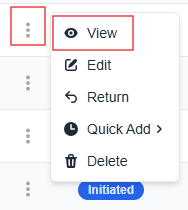
Select the three dots next to the Equipment to which you want to add the Training.
-
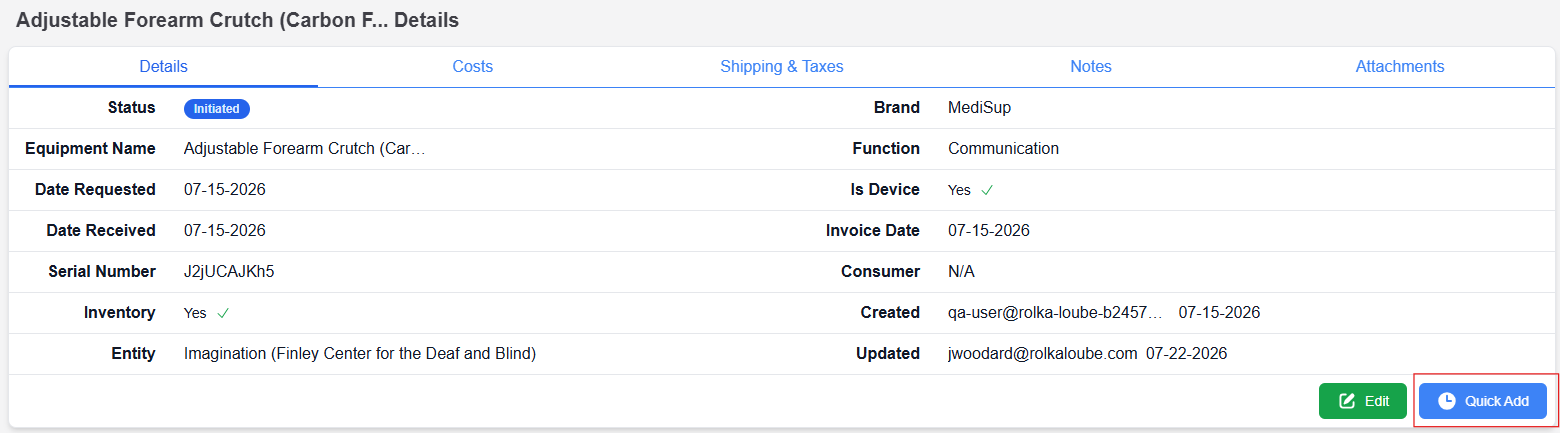
Select View from the drop-down menu. The [Equipment] Details page appears.
-
Select Quick Add.
-
Select Training from the drop-down menu. The New Training pop-up window appears.
-
Verify that the information in the required fields is correct.
Note: The Consumer, State Program, Date Requested and Date Performed fields will automatically populate. -
Select the Train the Trainer toggle to add train the trainer.
Note: See Trainingfor more information on how to add train the trainer. -
Deselect the add cost after saving toggle if you do not want to add costs.
Note: See Costs for more information on how to add costs. -
Select the add travel after saving toggle if you want to add travel.
Note: See Travelfor more information on how to add travel. -
Select Next to move on to Step 2.
-
Select Save. The message Successfully created Training! appears in green.
Note: The Equipment field will automatically populate.